
Zen Testnet: Mac OS Install Guide
0
0
Pre-requisites
To ensure you will not run into any issues with running rented it is recommended your system meets the following requirements:
Network Access: renterd needs a stable internet connection and open network access in order to store and retrieve data on Sia’s Zen Testnet.
Operating System Compatibility: You will need to ensure you download the correct renterd binary for your version of MacOS. If you are not sure which version you are on, you can run uname -m in a terminal to find out.
- x86_64 — MacOS AMD64
- M1, M2 — MacOS ARM64
Hardware Requirements: A stable setup that meets the following specifications is recommended. Not meeting these requirements may result in preventing slabs from uploading and can lead to a loss of data.
- A dual-core CPU
- 16GB of RAM
- An SSD with at least 128GB of free space.
⚠️ To ensure proper functionality, we are recommending 16GB RAM. This is because renterd will keep full slabs in memory when uploading. A full slab is 120MB, and a single upload may hold two or three slabs in memory. However, it is possible to run renterd with less RAM than this, and it may work fine depending on the use case.
Installing renterd
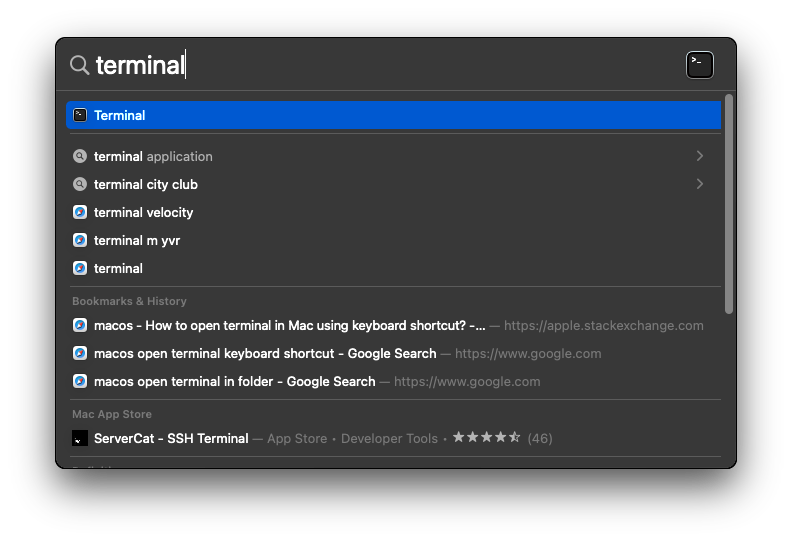
Press CMD + Space to open Spotlight search and open a terminal.
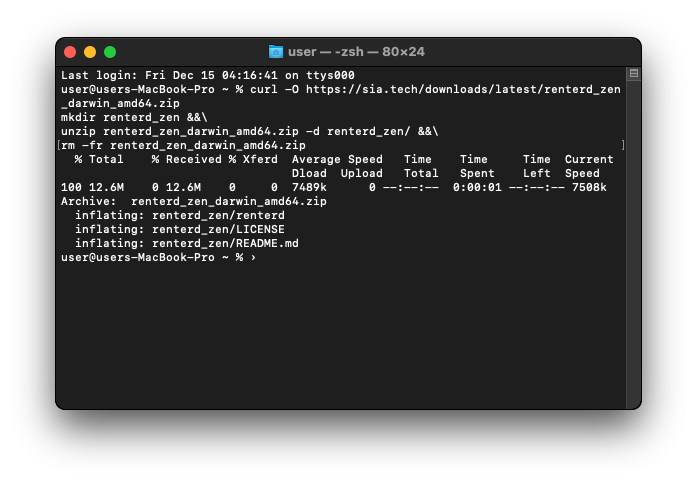
Once the Terminal loads, download and install renterd to your home folder. Make sure to download the correct version for your system.
- Install renterd for MacOS AMD64 systems:
curl -O https://sia.tech/downloads/latest/renterd_zen_darwin_amd64.zip
mkdir renterd_zen &&\
unzip renterd_zen_darwin_amd64.zip -d renterd_zen &&\
rm -fr renterd_zen_darwin_amd64.zip
- Install renterd for MacOS M1/M2 systems:
curl -O https://sia.tech/downloads/latest/renterd_zen_darwin_arm64.zip
mkdir ~/renterd_zen &&\
unzip renterd_zen_darwin_arm64.zip -d ~/renterd_zen &&\
rm -fr renterd_zen_darwin_arm64.zip
Creating a wallet
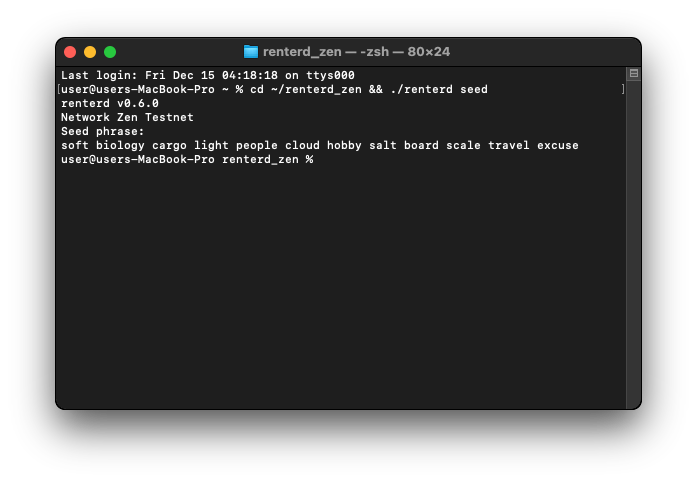
renterd uses BIP-39 12-word recovery phrases. To generate a new wallet recovery phrase, navigate to the renterd_zen directory and run renterd seed:
cd ~/renterd_zen && renterd seed
A new 12-word recovery phrase will be generated. Make sure to store it in a safe place, as you will need this phrase to recover your wallet.
Under your renterd_zen directory create a new text document named renterd.yml.
nano ~/renterd_zen/renterd.yml
Once the editor loads, enter the following and configure it as needed.
seed: your seed phrase goes here
https:
  password: your_api_password
autopilot:
  heartbeat: 5m
s3:
  enabled: true
  disableAuth: false
  address: "localhost:9885"
  keypairsV4:
    your_access_key: your_private_key
Make sure to add your wallet seed and create an API password. The recovery phrase is the 12-word seed phrase you generated in the previous step. Type it carefully, with one space between each word, or copy it from the previous step. The password is used to unlock the renterd web UI; it should be something secure and easy to remember.
⚠️ your_access_key must be at least 16-characters long, and your_private_key must be at least 40-characters long.
Save your renterd.yml configuration using ctrl-o and close the editor with ctrl-x.
Running renterd
Run the following command to start renterd.
cd ~/renterd_zen && ./renterd
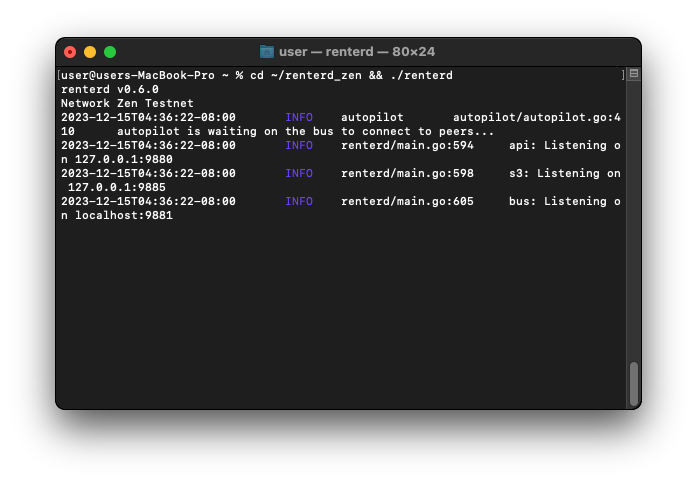
You can now access the Zen Testnet using the renterd web UI by opening a browser and going to https://localhost:9880.
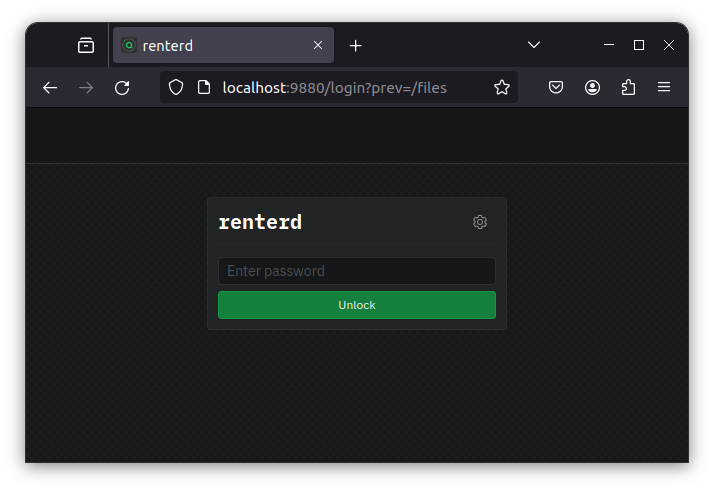
Enter the API password you created in your renterd.yml to unlock the renterd web UI.
✅ Congratulations, you have successfully set up renterd on the Zen Testnet. You can now move on to Configuring your renterd settings.
Zen Testnet: Mac OS Install Guide was originally published in The Sia Blog on Medium, where people are continuing the conversation by highlighting and responding to this story.
0
0
 Manage all your crypto, NFT and DeFi from one place
Securely connect the portfolio you’re using to start.