
CoinStats Integrates Kalshi: Track Your Crypto Perpetual Futures

Kalshi lists crypto perpetual futures, and CoinStats tracks them. First, connect your account with a read only API key. After that, your open positions and your closed trades land in your portfolio. So does the funding you paid or earned. In short, your Kalshi perps sit next to every other wallet and exchange you follow.
What lands in your portfolio
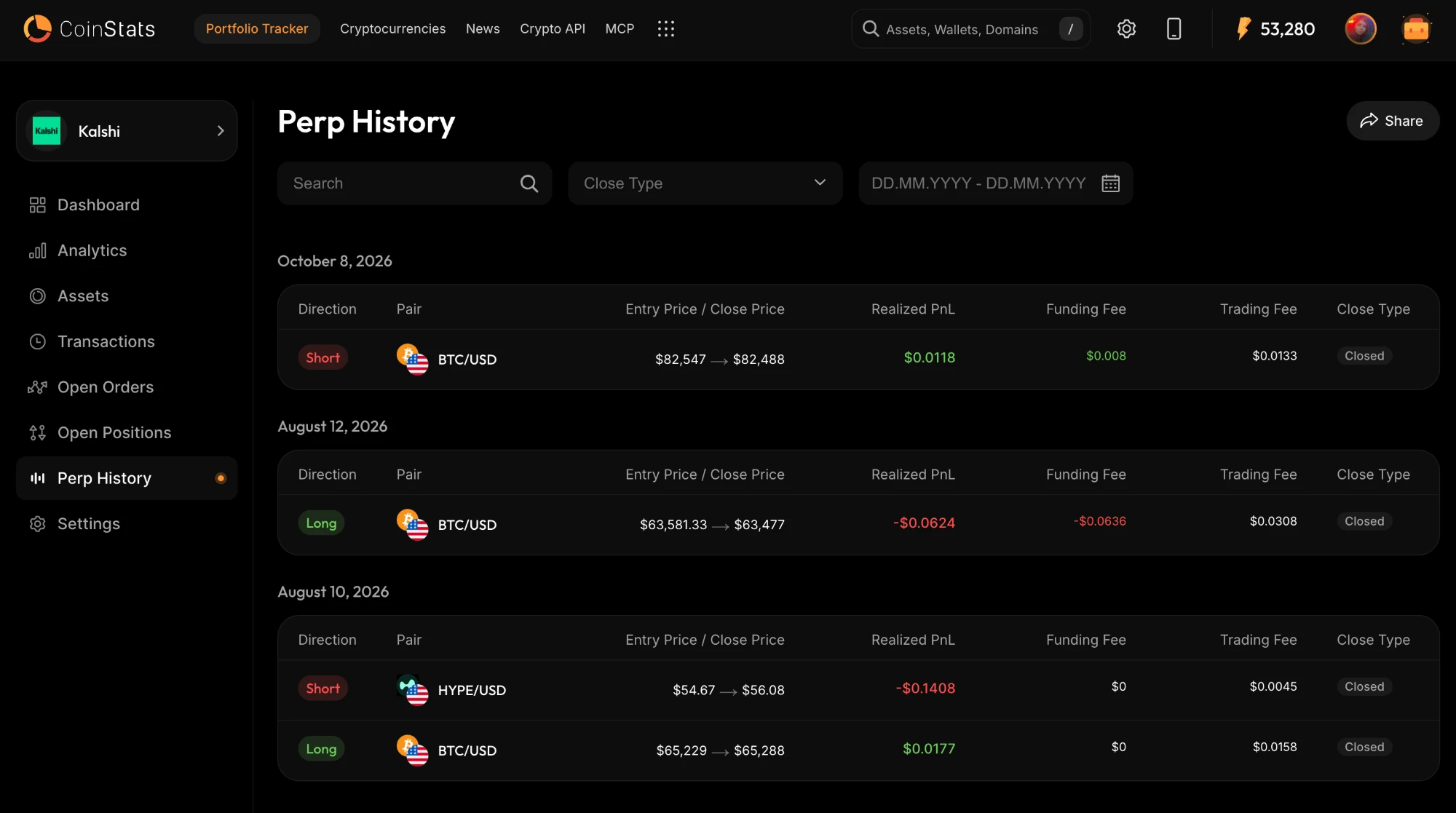
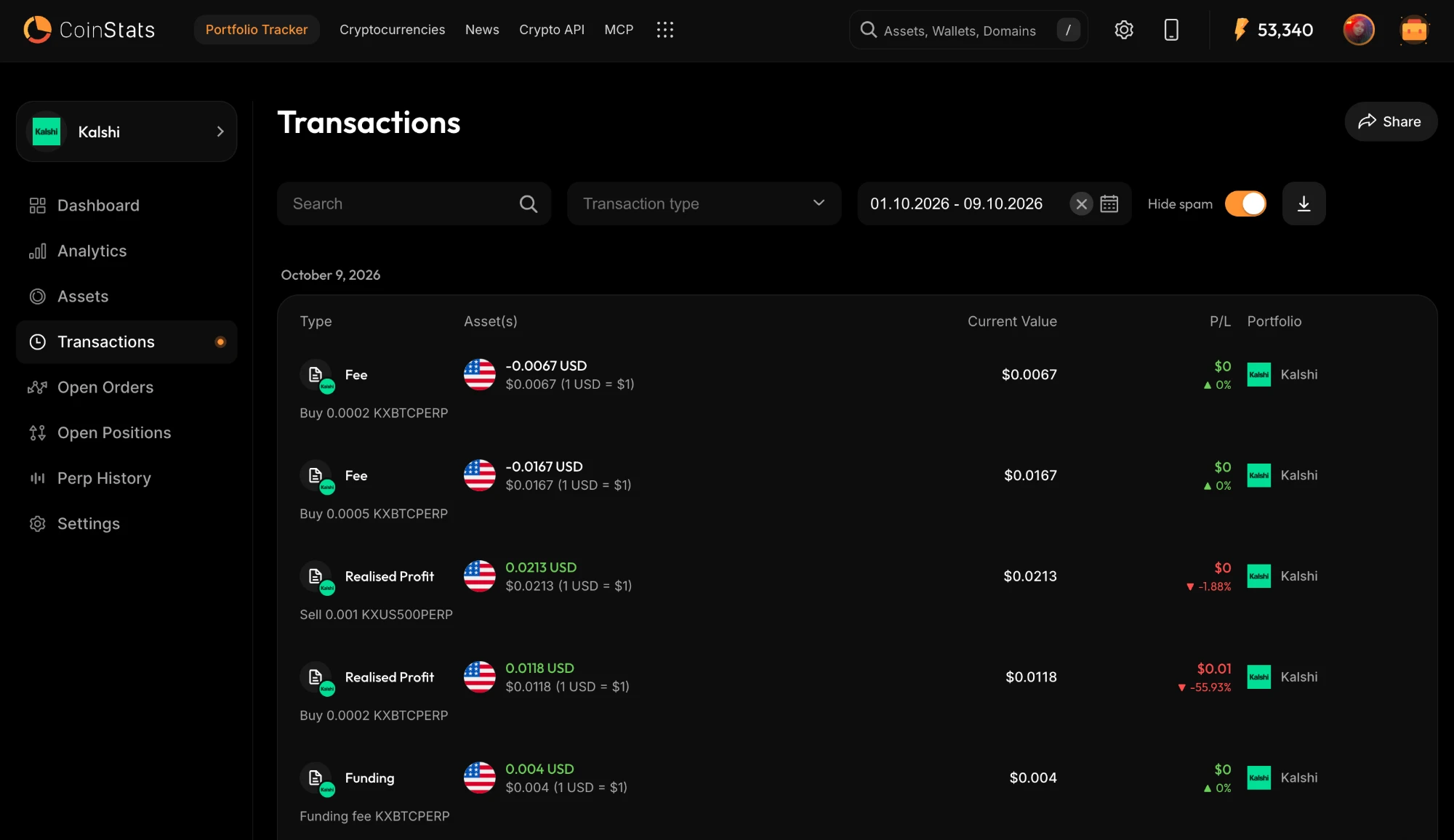
Closed trades get their own page under Perp History. Each row shows the direction you took and the pair. Next to that sit your entry and close price. Then come your realised profit or loss, the funding fee and the trading fee. Meanwhile, transfers in and out of your margin wallet come through as transactions.
Open positions, while they are still open
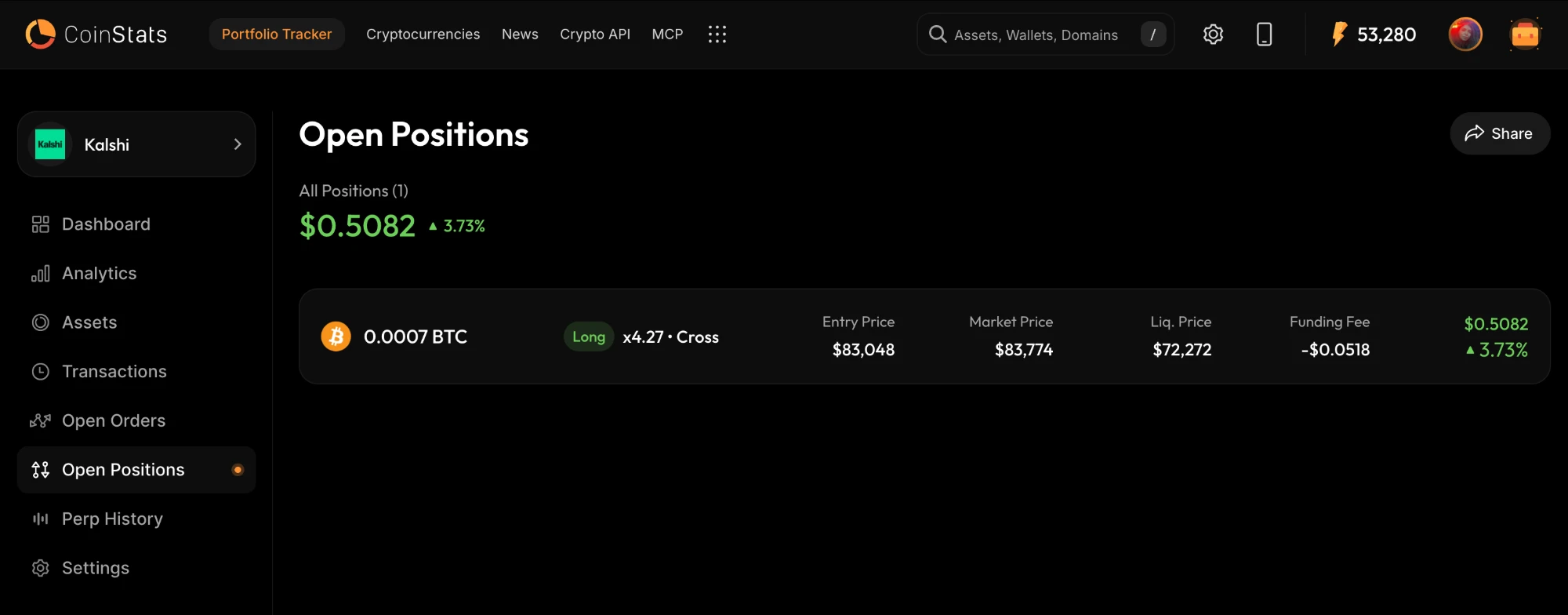
Every open perp sits on the Open Positions page. You see its size, its direction and the leverage you took. The page also says whether it runs on cross or isolated margin. Beside that are your entry price, the current market price and the liquidation price. Funding accrued so far sits there too. Finally, CoinStats shows unrealised profit or loss in your display currency, per position and totalled at the top. That way you can see where you stand without working it out yourself.
The numbers match what Kalshi reports
Perps are fiddly to track. The size, the margin and the liquidation price each mean something specific on the exchange. So a round of work in October lined all of them up with Kalshi’s own figures.
- Funding on closed trades: a finished position now carries the funding it accrued. CoinStats adds up every funding row between the day you opened it and the day you closed it. So a positive number means you were paid.
- Sizes in coin units: a fill that used to read Buy 1.00 KXUS500PERP now reads Buy 0.001 KXUS500PERP. That is because one contract is a thousandth of the index. Transaction notes, position sizes and perp history all speak the same units.
- Margin that holds still: a position sitting alone in its own subaccount now reports that subaccount’s collateral. Previously it used a maintenance margin figure, which drifted with the mark price on every sync.
- Liquidation price from the exchange: the estimate now comes straight from Kalshi’s own risk data. Before, CoinStats worked it out from your balance and the mark price, so it jittered.
How to connect Kalshi
- Log in to Kalshi on a computer.
- Open Account and security from the right side menu.
- Click Create key at the foot of the account page.
- Give the key a nickname, pick Read only, and create it.
- Paste the API key and the private key into the Kalshi connect page in CoinStats.
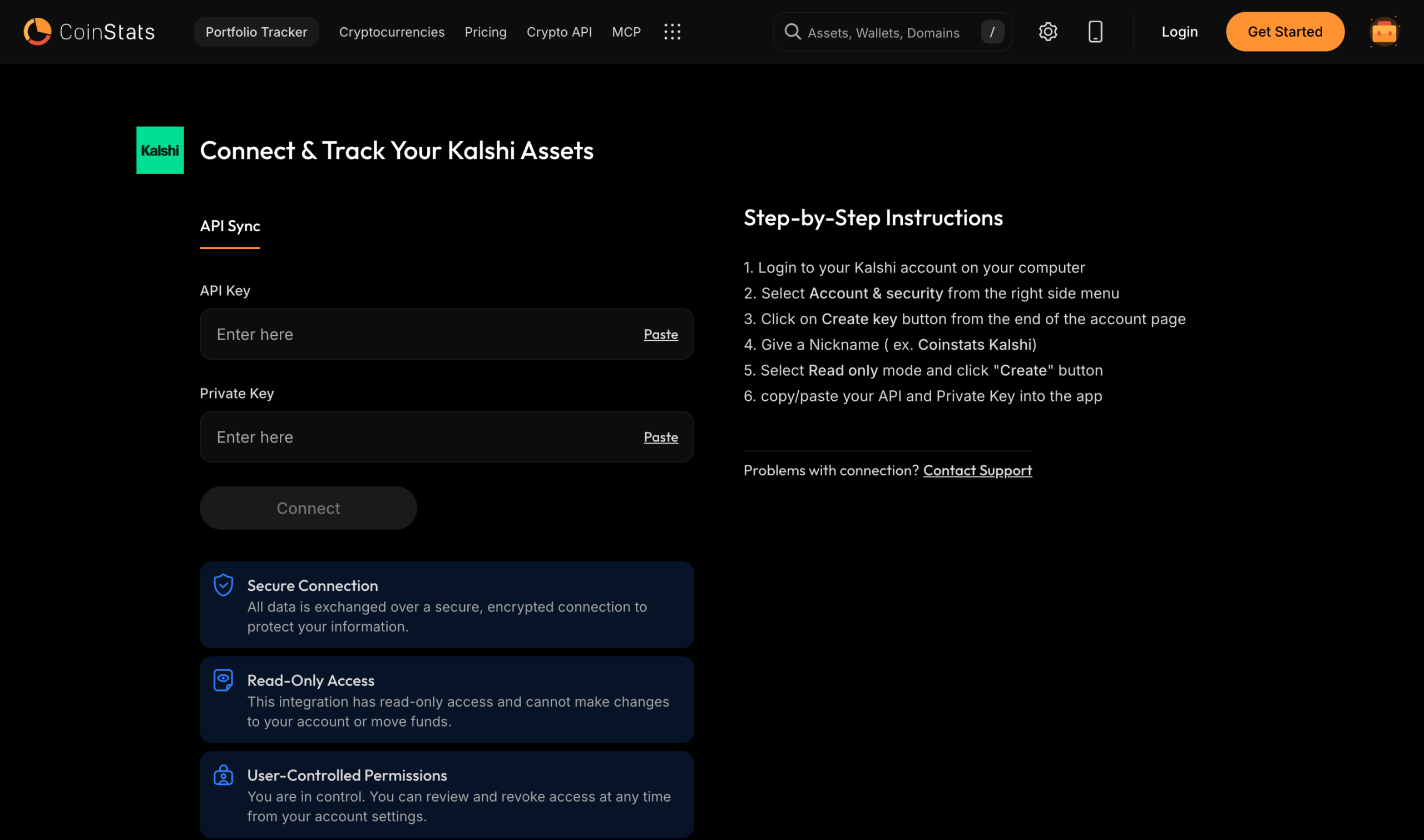
Connect your Kalshi account and your perps show up alongside the rest of your portfolio.
Why this matters
Perps move faster than anything else in a portfolio. Funding ticks every few hours, and margin shifts with the mark price. Meanwhile a position you opened on one venue is easy to lose track of next to spot holdings on another. So pulling Kalshi into the same dashboard helps. You see your exposure without opening a second app. Your realised profit or loss also lands in the same history as every other trade you have made.
Kalshi joins the other perp venues CoinStats tracks: Hyperliquid, Aster and Lighter. In addition, CoinStats covers 300 other wallets and exchanges. Perp History works on iOS, Android and the web.